
Short answer
From 15 minutes to under 2
Where the time goes when a GR is written by hand, and what BiltyOne does instead:
| Step | Paper GR book | BiltyOne |
|---|---|---|
| Consignor details | Written out in full every time | Pick the customer; phone, GSTIN and address fill in |
| GR number | Next page of the book | Automatic, never reused |
| Rate and freight | Looked up, then worked out on a calculator | Customer’s rate fills in; freight = rate × quantity |
| Three copies | Carbon paper, pressing hard | One PDF with all three copies |
| Mistakes | Scratched out on all three copies | Caught by checks before you save |
How a GR is created in BiltyOne
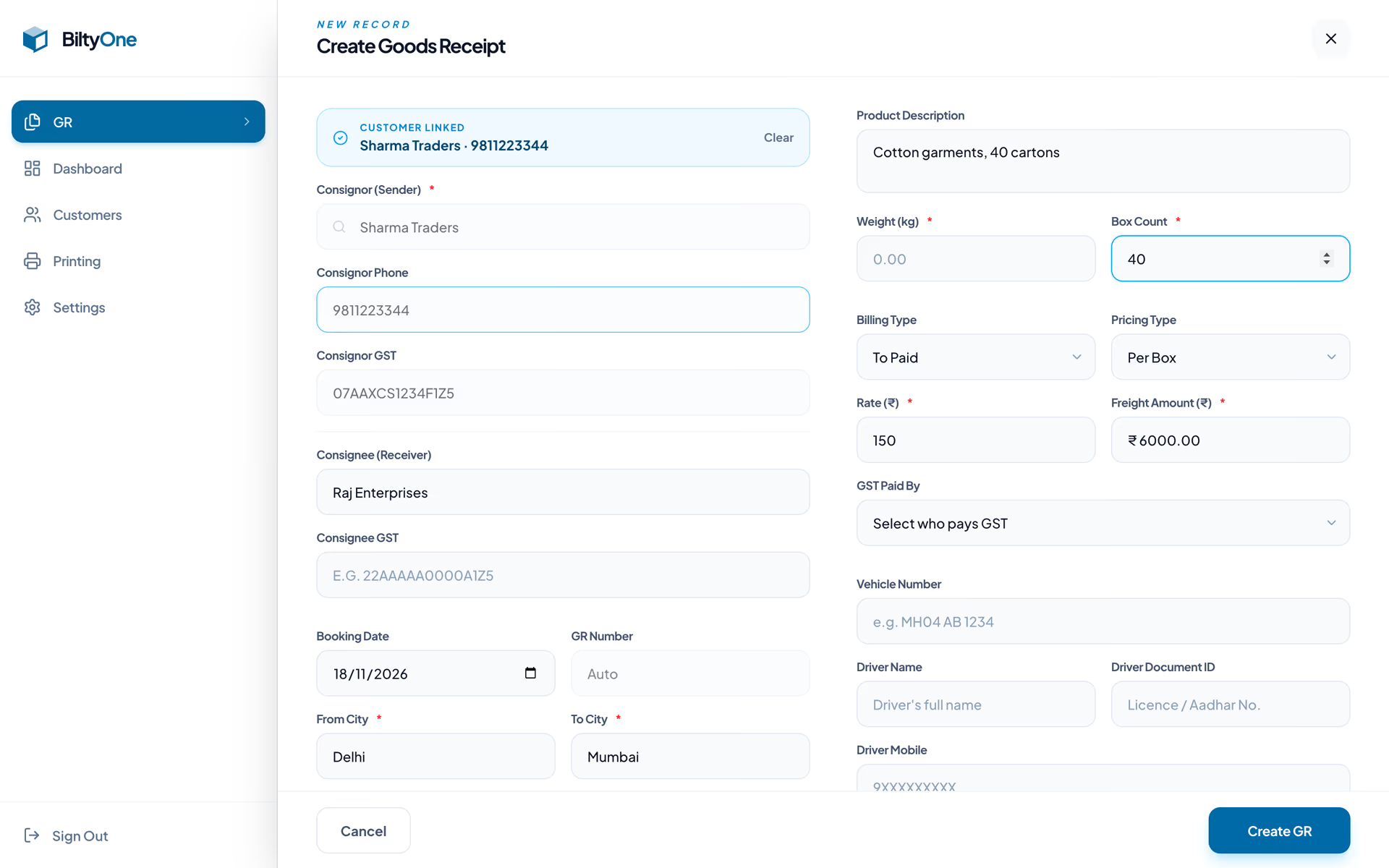
- Open the GR tab and click New Receipt. Today’s date is filled in and the GR number shows “Auto”.
- Start typing the consignor’s name and pick them from the list. A Customer linked badge appears, and their phone, GSTIN, address, pricing type and rate fill in. The from city fills in too if it is empty.
- Add the consignee and their GSTIN, and the to city.
- Describe the goods and enter the weight or the number of boxes. Freight is calculated as you type.
- Choose the billing type (Paid, To Pay or To Be Billed), and add the vehicle, driver, invoice and e-way bill numbers if you have them.
- Click Create GR, then print the driver, consignor and consignee copies in one PDF.
GR numbers you never think about
Every new GR takes the next number in your series, in the form GR-5A9-0001: a short code fixed for your company, then a counter. The counter goes up for every GR you create, duplicate or import. Numbers cannot be edited and are never reused, even after a deletion, so a gap in the series always means a deliberate deletion, not a missing page.
Moving from a paper book? Note the last paper GR number and the first BiltyOne number in your records; the paper GR book to software guide explains how.
New customers save themselves
You don’t have to set up every customer before you start. Type a new consignor’s name with their phone number, GSTIN and address on the GR, and when you click Create GR, BiltyOne saves them as a customer and links the GR to them. Enter a 6-digit pincode and the city and state fill in from India Post data.
Repeat loads in seconds
For a load that goes out every week, use the copy icon on an existing GR. The new GR gets the next number, today’s date and the status Booked; the parties, goods, rate and freight are copied. Check the invoice and e-way bill numbers before printing, because those are copied too.
Checks before you save
- GSTIN fields must be in the correct GSTIN format.
- Freight must be more than zero, so a GR can’t be saved without its charge.
- Driver mobile numbers must have 10 digits, and vehicle numbers are kept in capitals.
Once the GR exists, everything that happens to it next, from status and payment to search and the customer’s bill, is covered under GR management. Every field on the printed copy is listed on the lorry receipt software page.