
A tour of BiltyOne transport software
BiltyOne runs a transport office from five screens: GRs, customers, printing, settings and a dashboard. Here is what each one does, so you know exactly what you get before you sign up.
The BiltyOne dashboard
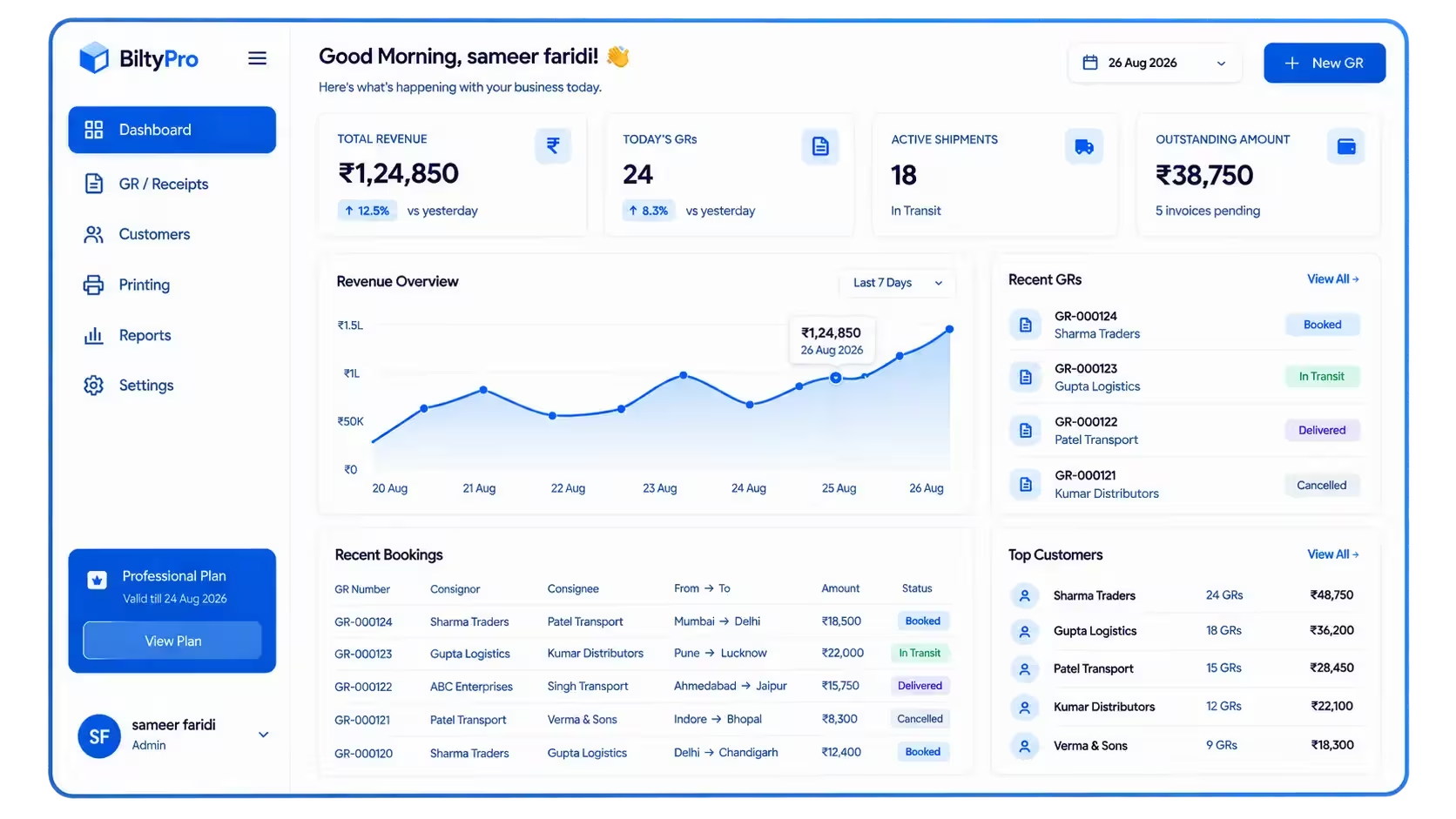
Screen by screen
GR tab
Where every load starts. The landing screen after you sign in.
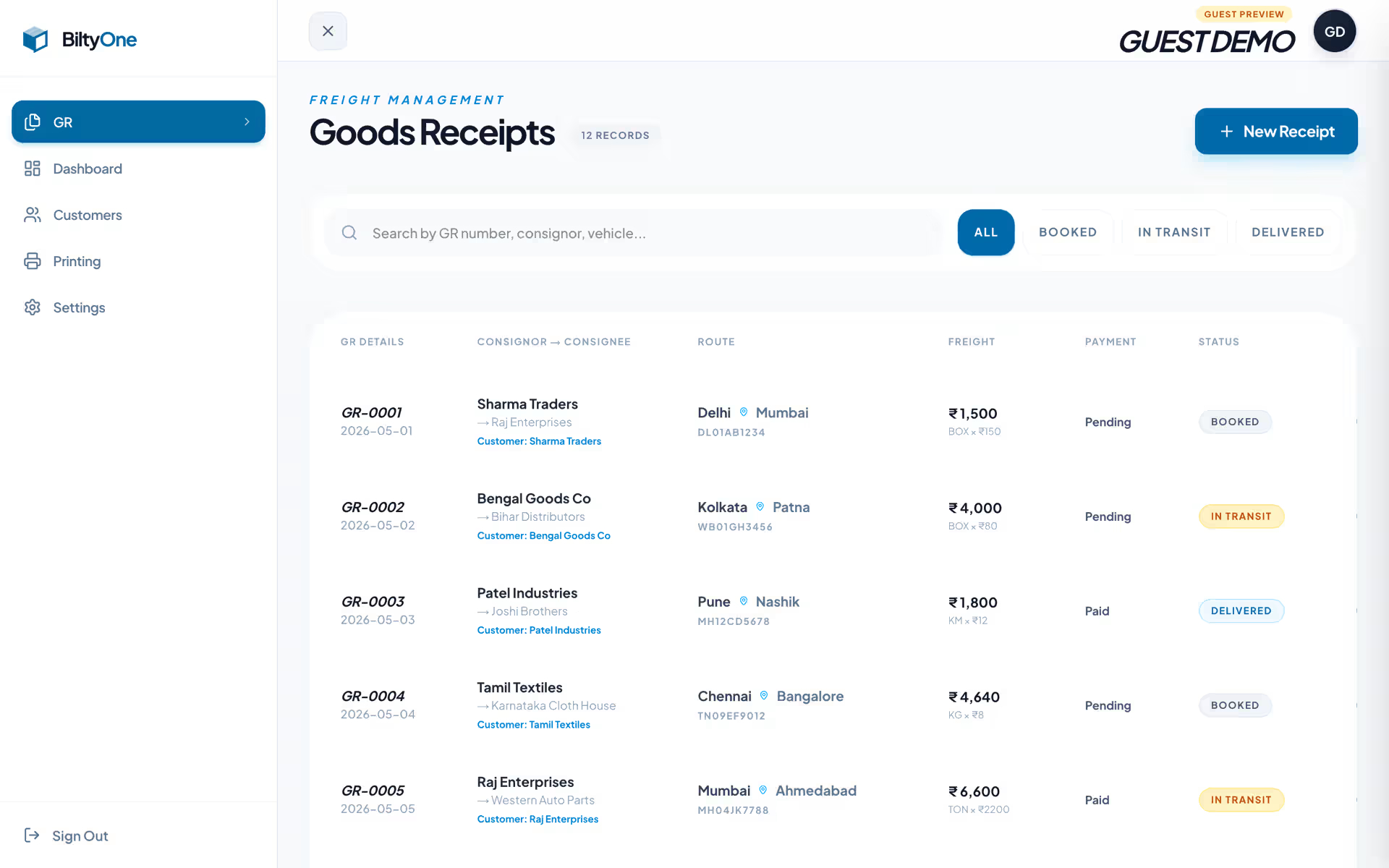
- A list of all GRs, newest first, with search by GR number, consignor, consignee, vehicle number or city.
- A create panel with every GR field: route, parties with GSTIN, goods, weight or boxes, pricing, vehicle and driver, invoice and e-way bill numbers, insurance and remarks.
- Automatic GR number and freight; status buttons for Booked, In Transit and Delivered.
- Print (three copies in one PDF), duplicate and delete actions on every row.
Customers tab
Your directory of regular consignors.
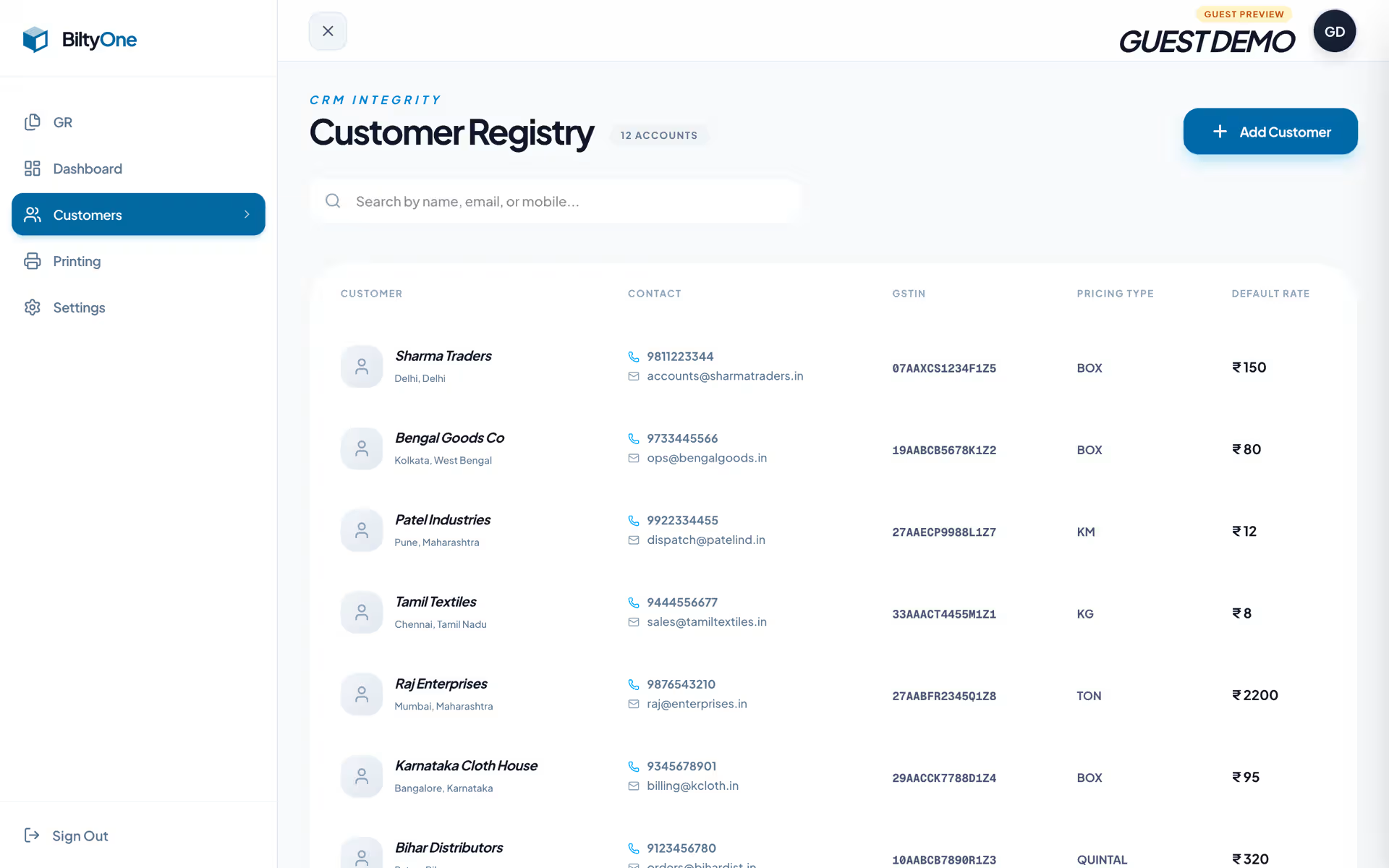
- Add a customer once with phone, email, GSTIN, address and a default pricing type and rate.
- Pincode lookup fills the city and state.
- Each customer has a profile page with tap-to-call, GSTIN copy and billing address.
Printing tab
Month-end billing in a few clicks.
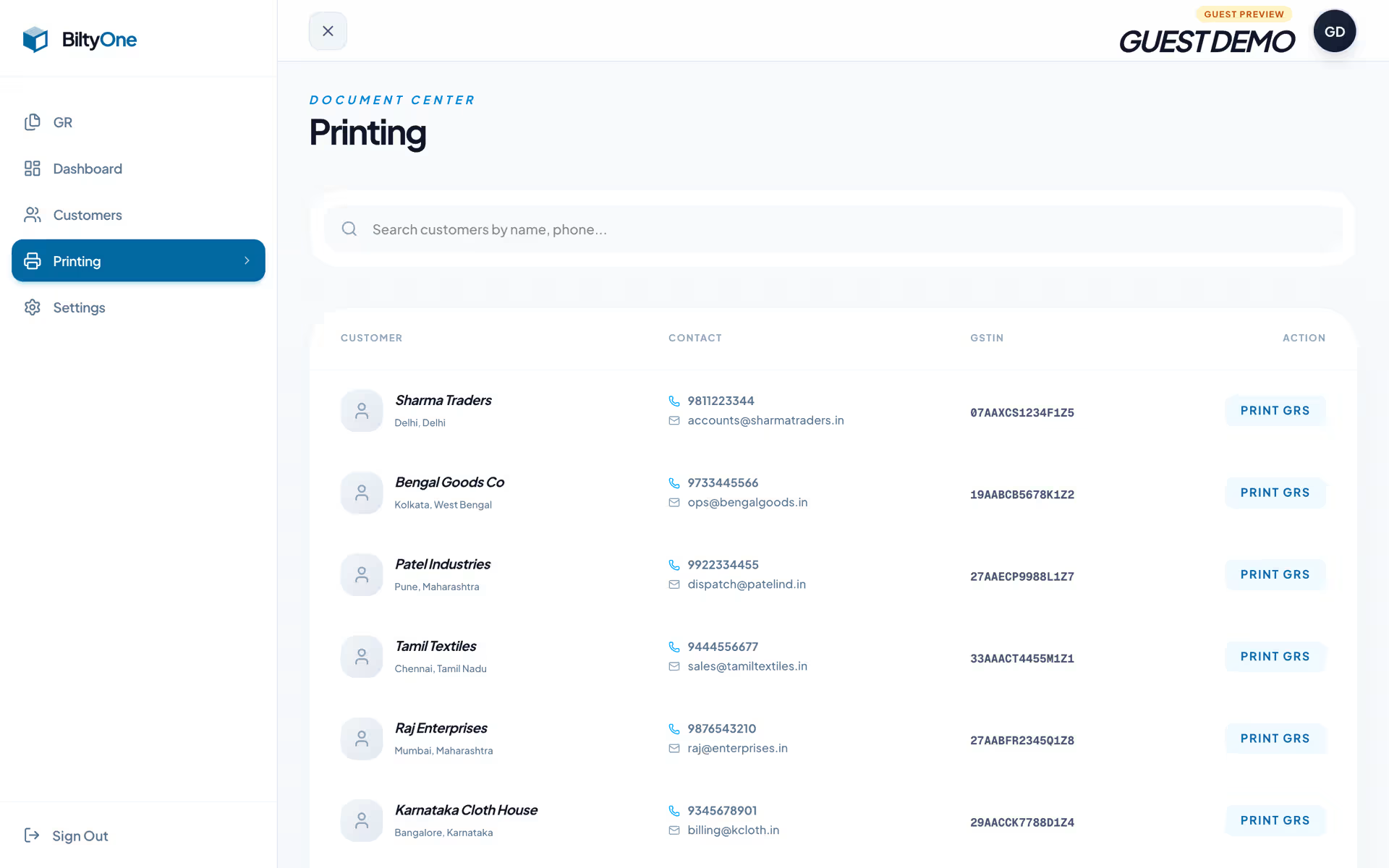
- Pick a customer and a date range.
- Download a PDF freight bill: an A4 summary with totals, amount paid and balance due, followed by every GR in the period.
Settings
Your company identity and your data.
- Company profile: name, GSTIN, PAN, phone, address, logo and bank details, printed on every GR and statement.
- Bulk data import from an Excel or CSV template, and a one-click Excel backup of all GRs.
- Appearance, plan status and sign-out.
Dashboard
The business at a glance.
- Total revenue, today’s GRs, active shipments and outstanding amounts, a revenue chart, recent bookings and top customers.
Need to work without internet? BiltyOne Desktop brings GR creation, printing and search to Windows, offline. For the full list of capabilities, see features.
What BiltyOne prints
Two documents leave a transport office every day: the GR that travels with the goods, and the bill that goes to the customer. Both come out of BiltyOne as PDFs that any office printer can handle.
The GR, in three copies
One PDF with three A5 landscape pages: the driver copy, consignor copy and consignee copy. Each page carries your logo, company name, GSTIN, PAN, phone and address, then the GR number, date and route; the consignor and consignee with their GSTINs; a goods table with packages, description, weight and freight; and a summary line with the invoice and e-way bill numbers, rate, billing type and total. Vehicle, driver, insurance and remarks print only when you have filled them in.
The customer freight bill
Page one is an A4 freight bill: your company details, the customer, a count of GRs by status, a table of every GR in the period, then the total amount, amount paid and balance due, with signature blocks for you and the customer. Every GR follows on its own A5 page, newest first, so the customer can check each load against the bill.
Which screen answers which question
The questions a transport office hears every day, and where BiltyOne keeps the answer.
| Question | Where to look |
|---|---|
| How is the business doing this month? | Dashboard: revenue, today’s GRs, active shipments and outstanding amounts |
| Where is this load? | GR tab: search by GR number, party, vehicle number or city, and read the status badge |
| What does this customer owe? | Printing tab: download their freight bill for any date range |
| What is this customer’s GSTIN or phone? | Customers tab: profile with tap-to-call and one-tap GSTIN copy |
| Is all our data backed up? | Settings: download every GR as one Excel workbook |
Product tour: common questions
What is on the customer freight bill?
Page one is an A4 freight bill with your company details, the customer, every GR in the date range in one table, the total amount, the amount paid and the balance due. Each GR then follows on its own A5 page, newest first, so your customer can check every load against the bill before paying.
Can I try BiltyOne before signing up?
Yes. The live demo opens BiltyOne in guest mode with sample data, with no signup and no credit card. Look through the GR list, customers, printing and dashboard to see how the screens work, then register when you want to use it with your own company details and logo.
Which screen opens first after I sign in?
The GR tab, because creating and finding GRs is most of the day’s work. It lists every GR, newest first, with search by GR number, consignor, consignee, vehicle number or city. The dashboard, customers, printing and settings are one click away in the sidebar.
Ready to leave the paper behind?
Create your first GR in minutes. Free for early transporters, no credit card needed.